

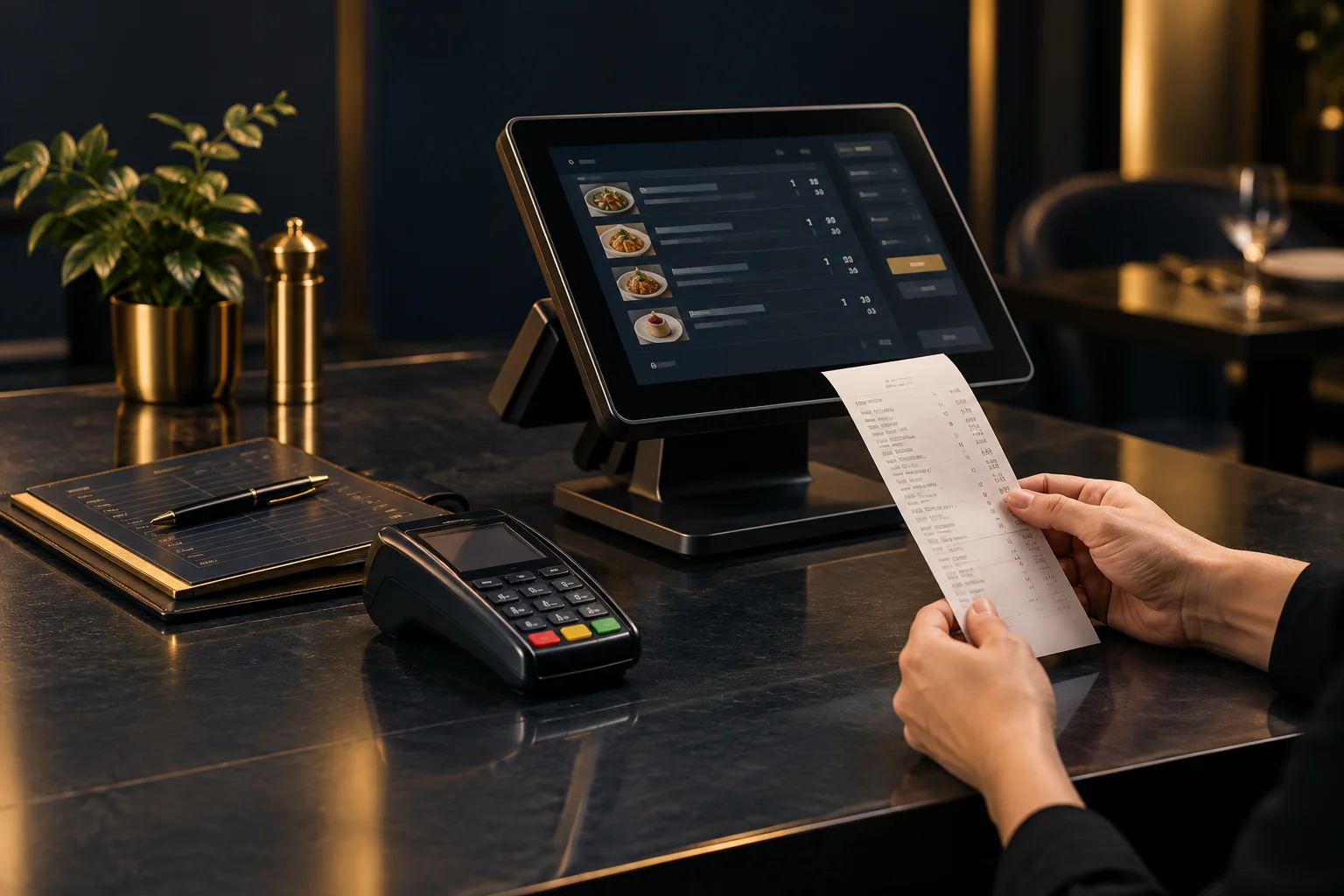
1. Identify which receipt looks wrong
Ask the customer or colleague what looks wrong: an unfamiliar item name, a missing option, an unexpected quantity, the amount, or the physical print. Keep the original receipt available. Do not edit an otherwise correct order simply to make its wording resemble another document.
An order receipt and a card payment record serve different purposes. One describes the purchase; the other records payment information. Their references may differ, so do not expect every identifier to match. Use the available order details, time, amount and transaction information together to establish whether they relate to the same purchase.
- Find the original order using the details available in your setup.
- Confirm the date, approximate time and amount with the customer.
- Record the exact discrepancy rather than describing the whole receipt as wrong.
2. Compare item names, quantities and selections
Read each order line alongside the receipt. Check whether a name is shortened, whether repeated items are grouped into a quantity, and whether an option appears separately. A customer may recognise the shelf label but not the wording used in the product record. That is a clarity issue, not automatically evidence of an incorrect sale.
NeroPOS provides product and order management, options, stock-related controls and receipt workflows. Check the relevant product and option records before deciding what to change. Receipt presentation and supported outputs depend on the installation; do not assume that a particular field or layout control is available.
- Compare every item and quantity, including repeated products.
- Check each selected option against the recorded order.
- Compare line amounts and the final total, noting any unexplained difference.
3. Separate missing information from a printing problem
A cleanly printed receipt with unexpected wording calls for a different investigation from faint text, a cut-off line or a partly printed page. Where another receipt view or output is available, compare it with the paper copy. If the same information is absent in both, start with the order and receipt workflow rather than assuming a physical printer fault.
For damaged or incomplete output, follow the device manufacturer's checks and your shop's approved procedure. Supported printing, kitchen displays and integrations depend on setup. Avoid changing several settings at once: one controlled change makes it easier to see what helped and to undo an unsuccessful adjustment.
- Note whether the problem affects wording, layout or print quality.
- Check accessible paper and device status according to the device guidance.
- If reprinting is supported, keep the original and identify the new copy as a duplicate when handing it over.
4. Check payment evidence without taking payment again
An odd-looking receipt is not, by itself, evidence that payment failed. If the concern is the amount paid or whether payment completed, check the available payment record through your authorised process. Do not ask the customer to pay again solely because an item description is unfamiliar or a receipt is incomplete.
Hypothetical example: a customer buys two sandwiches, one with an extra filling. The order records both sandwiches and the selected extra, but the paper receipt uses a shortened product name and the customer cannot identify their selection. First compare the order, quantities and total. If the payment evidence also agrees, investigate receipt clarity rather than collecting another payment. If the extra is absent from the order itself, investigate order entry instead.
- Compare the order amount with the relevant payment evidence.
- Where records conflict or the status is unclear, involve the responsible colleague or support team before making a payment-related change.
5. Escalate with evidence and verify the result
If the cause remains unclear, send support a concise description of what was expected and what appeared instead. Include the order reference, time, affected items and receipt example through an approved channel. Provide device details if printing is involved, and remove unnecessary customer or payment information.
For a NeroWeb order, include its source and explain where the discrepancy first appears. NeroWeb orders can use the existing fulfilment workflow, but the actual route and supported devices must be confirmed. After an agreed correction, use an approved test or the next suitable order to compare the record and receipt. Success means the items, quantities, selections and total are clear and consistent, with any payment reference difference understood.
- State whether one order or several orders are affected.
- Record any change made and the result of the follow-up check.
- Give the next shift a clear handover if the issue remains unresolved.
GOOD TO KNOW
Common questions
Does a wrong-looking receipt mean the customer was charged incorrectly?
Not necessarily. Check the order amount and payment evidence separately. Wording or printing problems alone do not establish that the charge was wrong.
Should I change the product name immediately?
First confirm which record supplies the wording and whether changing it could affect other workflows. Use your approved process and check a subsequent receipt.
What should I tell the customer while checking?
Explain the specific issue: for example, that you are checking a shortened item description against their order. Avoid claiming a payment failed until the evidence supports that conclusion.