

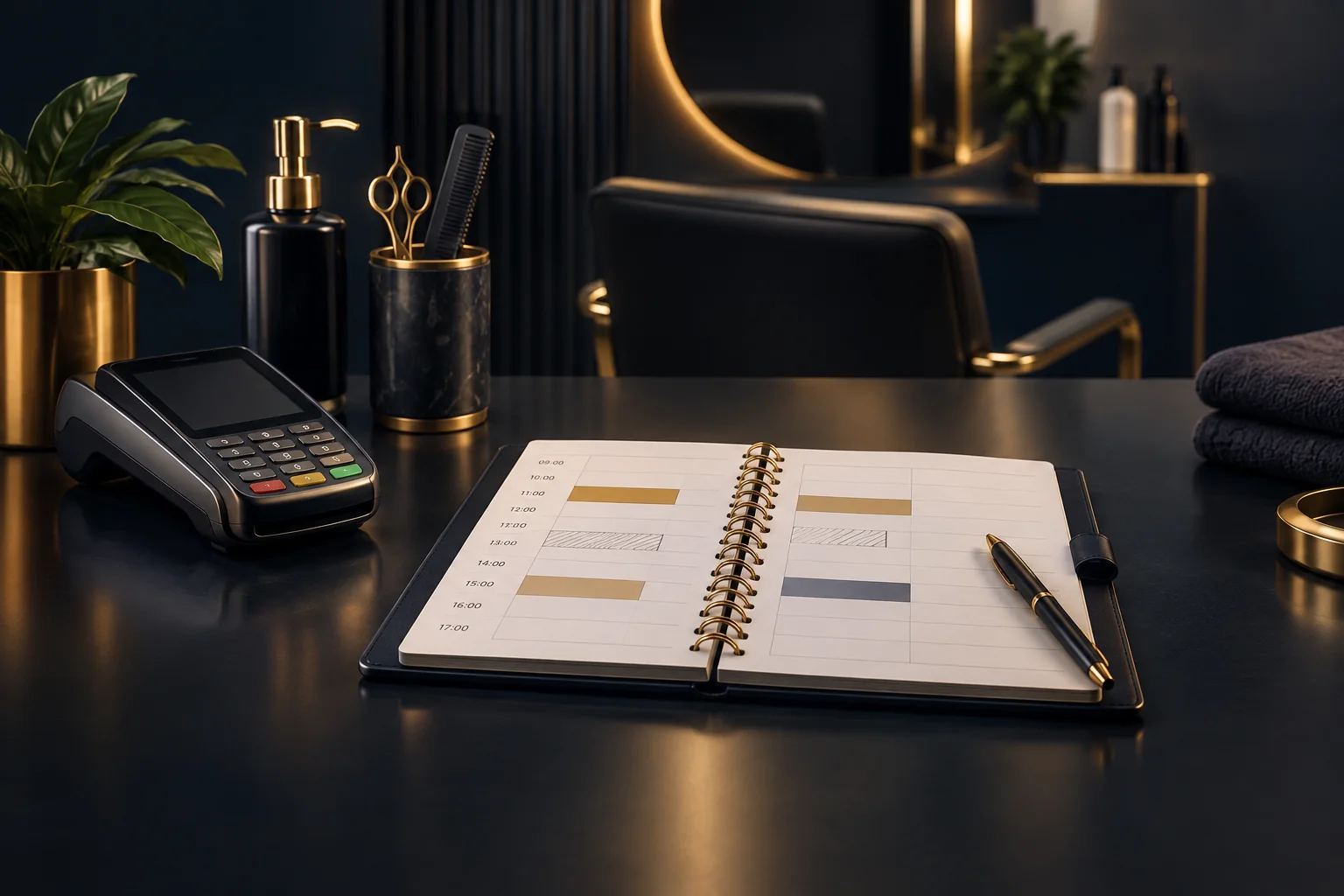
1. Identify where the customer gets stuck
Ask what the customer means by “cannot book”. Is the time missing from the available choices, does a message appear after selection, or can they proceed but not complete the booking? These are different symptoms. Record the wording of any message rather than interpreting it as a technical fault straight away.
Confirm the service name, appointment date and expected start time. If the customer chose a different treatment from the one reception had in mind, the availability may legitimately differ. Where practical, follow the same customer-facing route without completing a duplicate booking.
- Ask which service and date they selected.
- Note the last stage they reached and any message shown.
- Compare their selection with the appointment reception expected to offer.
2. Check the service against the full available window
Review the configured service and its availability, not just the salon’s opening hours. A salon may be open while a particular treatment is unavailable. Compare the time required for the selected service with the uninterrupted window you can genuinely offer, including any preparation or finishing time your team needs.
Next, check existing appointments and other commitments used to plan the day. A short visible gap does not establish that the whole treatment will fit. If your team relies on a separate diary or staffing record, compare it deliberately; do not assume it is connected to NeroBooking. Confirm any supported integration with the team.
- Check the selected service’s configured availability.
- Compare the complete appointment window with existing commitments.
- Verify that the person responsible for the diary agrees the slot is workable.
3. Review booking rules before changing availability
Configured payment and approval rules can affect what can be booked. If the customer can select a time but cannot finish, establish whether an applicable requirement remains incomplete. Do not treat a selected time, a booking request and a confirmed appointment as interchangeable; check the actual outcome before advising the customer to attend.
Review the rules that apply to this service and appointment rather than changing settings broadly. A restriction may be intentional. If a rule appears incorrect, ask the person responsible for booking configuration to review it. Avoid removing a valid requirement simply to make one booking pass, and confirm supported options before proposing a different workflow.
- Check which payment or approval requirements apply.
- Establish whether a booking already exists before asking the customer to retry.
- Have the responsible team member review any suspected configuration error.
4. Work through a realistic salon example
Hypothetical example: a customer expects to book a cut and finish at 3 pm because reception mentioned a gap. The selected service needs an hour, but another appointment starts at 3.45 pm. The apparent gap is therefore too short. Making the time bookable would not solve the underlying scheduling problem.
Reception should explain that the full treatment will not fit and offer a checked alternative. If the service was selected incorrectly, confirm what the customer actually needs before suggesting another option. Do not shorten a treatment or substitute a service just to expose a time. Once an alternative is agreed, verify that it can be booked under the applicable rules.
5. Retest the result or escalate with clear evidence
After an authorised correction, repeat the original customer journey using the same service and date. Success means the expected time can be selected and the booking reaches the appropriate outcome under your payment and approval rules. If the restriction was correct, success means giving the customer an accurate explanation and a genuinely available alternative.
If the configuration and commitments appear correct but the problem persists, contact the NeroPay team with the service, appointment date, expected time, exact message and steps already checked. Include screenshots only where useful, concealing unnecessary customer information and payment details. Tell the customer what happens next without promising a resolution time you have not confirmed.
- Retest without creating an unnecessary duplicate appointment.
- Record whether the symptom disappeared or remains reproducible.
- Escalate with specific evidence and agree who will update the customer.
GOOD TO KNOW
Common questions
Why is a time unavailable when the salon is open?
Opening hours alone do not establish availability for every service. Check the configured service availability, the full time needed and existing commitments before offering the appointment.
Should we ask the customer to keep trying?
First check whether a booking already exists and identify where the attempt stopped. Repeated attempts without checking the outcome can create confusion for both reception and the customer.
Does NeroBooking automatically match our other diary?
Do not assume that a separate diary is connected. Confirm supported features and integrations with the NeroPay team, and compare records manually where your workflow requires it.
What should reception say while investigating?
Explain that you are checking whether the complete service fits and whether any booking requirement applies. Offer to follow up or discuss a verified alternative, rather than promising an unchecked slot.