
40% ਦੀ ਛੂਟ ਸਾਰੇ ਡਿਵਾਈਸਾਂ ਉੱਤੇ
ਡਿਵਾਈਸਾਂ ਦੀਆਂ ਸੂਚੀਬੱਧ ਕੀਮਤਾਂ ਅਤੇ ਯੋਗ ਛੇ ਮਹੀਨਿਆਂ ਵਾਲੇ ਟਰਮੀਨਲ ਪਲਾਨਾਂ ਦੀ ਪੂਰੀ ਕੁੱਲ ਰਕਮ ਉੱਤੇ ਬਚਤ ਕਰੋ। ਛੂਟ ਚੈੱਕਆਉਟ ਵੇਲੇ ਲਾਗੂ ਹੋਵੇਗੀ।
ਬਲੈਕ ਫ੍ਰਾਈਡੇ ਖਰੀਦੋ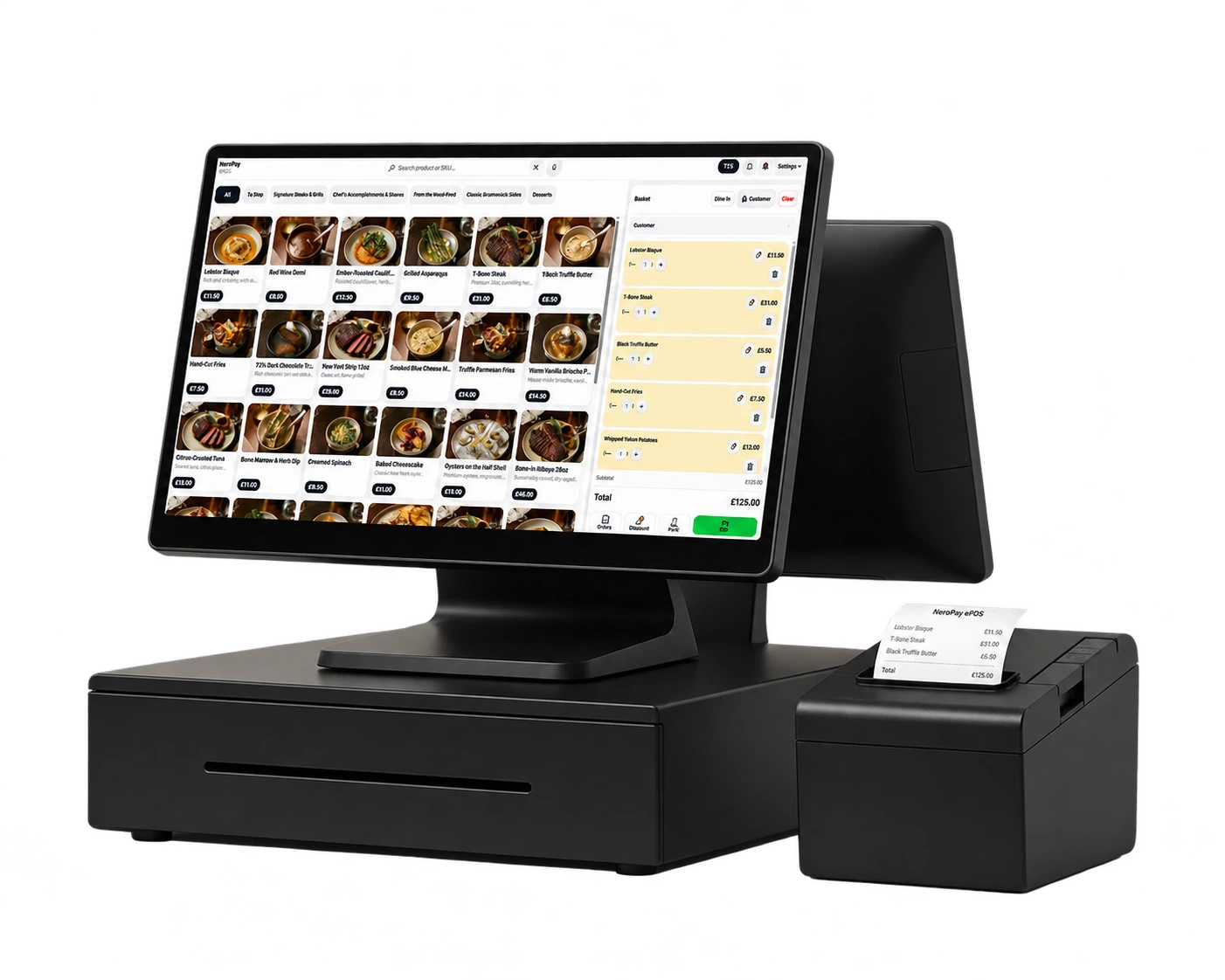


ਆਓ, ਤੁਹਾਡੇ ਲਈ ਸਹੀ ਸੈੱਟਅੱਪ ਲੱਭੀਏ
ਸਾਨੂੰ ਦੱਸੋ ਕਿ ਤੁਹਾਡੇ ਕਾਰੋਬਾਰ ਨੂੰ ਕੀ ਚਾਹੀਦਾ ਹੈ ਅਤੇ ਅਸੀਂ ਤੁਹਾਡੀ ਚੋਣ ਕਰਨ ਵਿੱਚ ਮਦਦ ਕਰਾਂਗੇ।
NeroPay apps
Your business.
On your device.
From the counter to your next stop, keep your NeroPay workspace close. Choose your device and sign in with your existing account.
Available features follow your account permissions and device setup.
 NeroPay
Ready for your working day.
Illustrative workspace. Features and layout vary by device and account.
Choose your device
At the counter.
On the move.
Mobile apps for your phone or tablet. Desktop apps for compatible computers and POS setups.
An internet connection is required. Payment acceptance and receipt printing depend on your device, supported hardware and account access.
A familiar way to work
One account.
Ready where you are.
Choose your device
Use an app store download or the matching desktop installer above.
Sign in to NeroPay
Use your existing account. Your staff access remains controlled by your account permissions.
Check your setup
Confirm your connected devices and printing before using the app during service.
A little clarity
Before you connect.
Do I need a new account for the app?
No. Sign in with your existing NeroPay account. If you are new to NeroPay, create your account and complete the required setup first.
Can I use NeroPay in a browser?
Yes. You can access your NeroPay account through your browser. Device-specific payment and printing features depend on your setup.
Which download works on Raspberry Pi?
Choose the arm64 download for a compatible 64-bit ARM Linux installation. The x64 Linux download is for Intel or AMD computers.
Can the app print receipts?
Receipt printing depends on your device, supported printer and configuration. Check your setup before relying on it during service.