

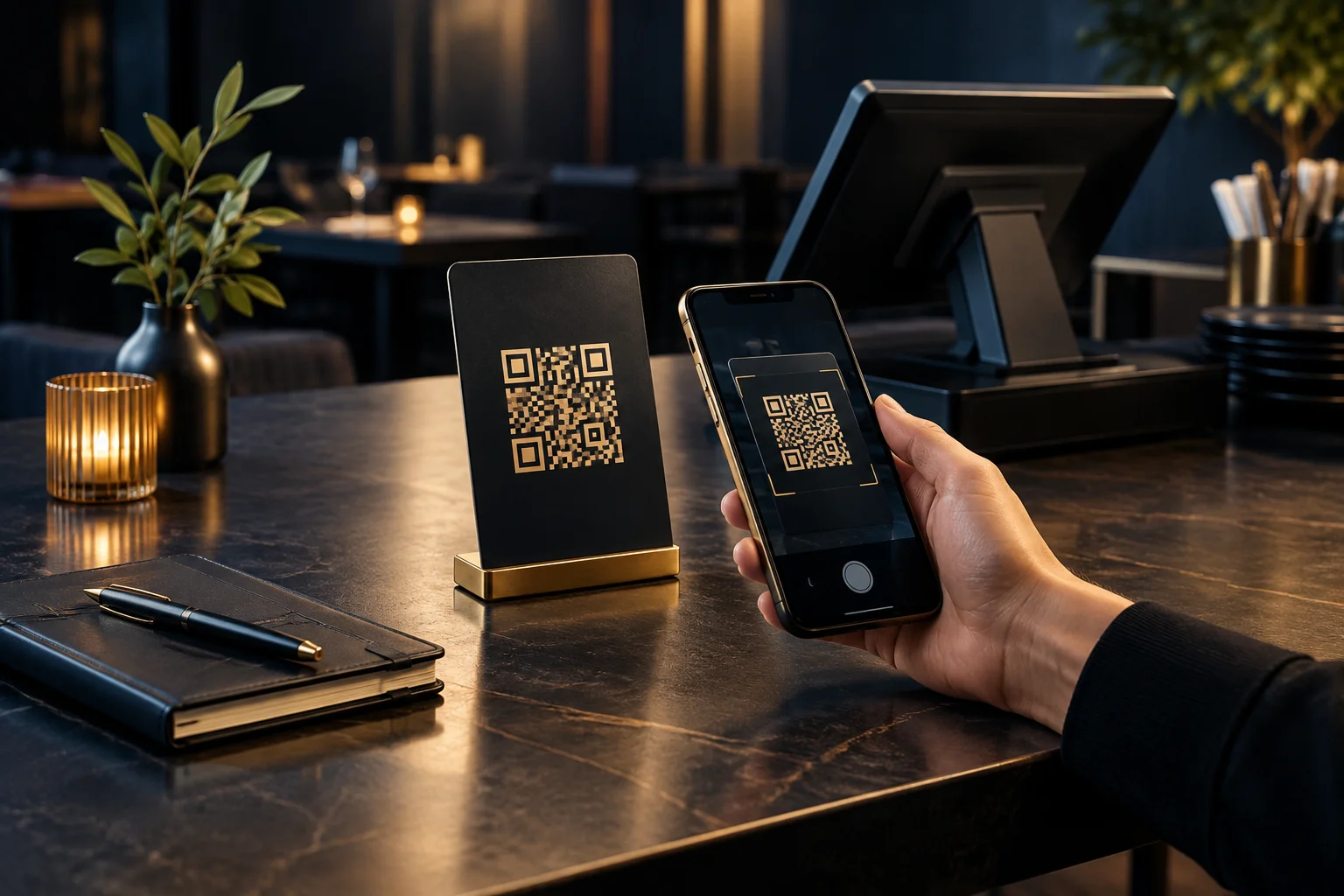
1. Decide how the QR payment will fit your bill
Start with one clear use: settling a restaurant bill after a member of staff has checked it with the customer. Decide whether staff will present a code with each bill or use another supported arrangement. Ask NeroPay which QR options are available and how amounts and references are handled. Do not assume that a scan automatically retrieves a table’s current balance.
Choose who owns each check. Staff should establish the final bill and explain anything the customer needs to enter. The customer should review the payment details before authorising payment. Also agree how you will handle split bills, changes after the bill is printed and a customer who would rather pay another way.
- Confirm product availability, supported devices, charges and applicable terms with NeroPay.
- Write down whether the amount and reference are supplied by the setup or entered manually.
- Choose one member of staff to approve the process before launch.
2. Help customers recognise the correct payment page
Before printing anything, scan the approved code and review where it takes you. Record the expected destination and the business details customers should see. A payment page may use a payment provider’s address rather than your restaurant’s own website, so give staff an accurate explanation instead of telling customers to trust any page carrying your logo.
Place a short instruction beside the code: scan to pay, check the business details and match the payment to your bill. Ask customers to stop and speak to staff if the destination looks unexpected. Inspect table displays and bill inserts for damaged codes, replacement stickers or changes to their placement; appearance alone is not proof that a code is genuine.
- Scan each printed version before using it.
- Check that customers can read the instructions in normal dining-room lighting.
- Give staff the approved destination details so they can resolve questions.
3. Check the amount and reference before payment
The payment amount should match the bill the customer has agreed to settle. Where the customer enters it manually, ask them to check pounds and pence before continuing. Where an amount is already shown, it still needs checking against the bill. Explain any bill changes before asking the customer to authorise payment.
A reference should help staff identify the correct bill without guesswork. Agree a consistent format using the fields your chosen setup supports. A table number on its own may be ambiguous when that table is used again later. Avoid asking customers to put unnecessary personal information into a reference field, and check how partial payments will be recorded.
- Choose a reference convention that distinguishes separate bills.
- Include an amount-and-reference check in the staff payment explanation.
- Test a mistyped reference and an incorrect amount so staff know when to intervene.
4. Rehearse the whole journey with a hypothetical bill
Hypothetical example: a party at table 12 agrees a final bill of £64.80. In a setup that supports customer-entered amounts and references, the server provides the approved QR code and asks the customer to enter £64.80 with the agreed bill reference, T12-184. The customer scans, checks the expected destination and business details, then compares both entries with the bill before authorising payment.
The customer then waits for the result rather than treating the scan as payment. The server checks the payment status through the agreed staff-side process before marking the bill as settled. If either side sees a pending or unclear result, staff investigate before asking the customer to try again. This example describes a workflow to confirm, not a promise about particular NeroPay screen fields or features.
- Ask NeroPay how to test safely before taking live customer payments.
- Rehearse a successful payment and an unclear or interrupted result.
- Check how staff will recognise a payment against the correct bill.
5. Brief the team and inspect the first service
Give staff a short explanation they can use naturally: check your bill, scan this code, review the business details, amount and reference, then wait for confirmation. Make clear who can investigate payment questions. A screenshot or a customer saying they have paid should not replace your agreed staff-side status check.
For the first service, keep the rollout manageable and review any confusion afterwards. Look for unreadable codes, unclear references and customers assuming payment has finished too early. Have an alternative payment method available for anyone unable or unwilling to scan, and check displayed codes again before the next service.
- Brief every shift on confirmation checks and who handles exceptions.
- Keep an alternative payment route ready.
- Review problems after service before printing or displaying more codes.
GOOD TO KNOW
Common questions
Does scanning the QR code mean the bill is paid?
No. Scanning opens the destination. The customer must complete the payment journey, and staff should verify the result through the agreed payment-status process.
Will the code automatically show the table’s bill?
Do not assume so. Confirm with NeroPay how your chosen QR option handles amounts, references and bill matching before writing customer instructions.
What should we do if payment confirmation is unclear?
Check the payment status before requesting another attempt. Explain to the customer that you are verifying the result to avoid a duplicate payment.
Can we use one code throughout the restaurant?
Ask NeroPay whether that arrangement suits the available setup. Your process must still distinguish bills reliably and help customers check the correct amount and reference.